As soon as new Microsoft Products are delivered with PowerShell SnapIns it makes more sense to put a toe into programming it. I have Windows Server 2008 R2 as a main platform for development. On Windows Server 2008 R2 Windows PowerShell ISE isn't running by default. To turn it on, a corresponding feature, called Windows PowerShell ISE should be added in Roles and Features. To do this:
1) Open Windows Start menu.
2) Right click on Computer
3) Select Features
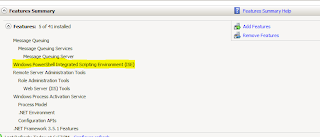
4) Add "Windows Powershell Integrated Script Environment" feature
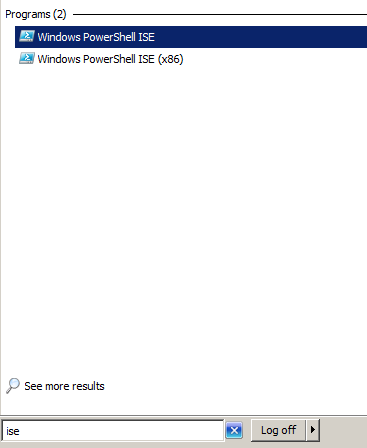
When ISE is added you could just open Start menu and type "ISE". If you have Windows Vista, Windows 7 or Windows Server 2008 you'll a couple of programs displayed.
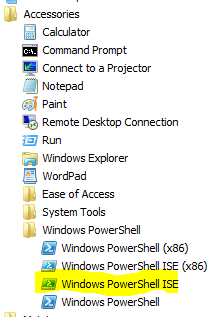
Alternatively, you could just select it though Start/Accessories/PowerShell menu
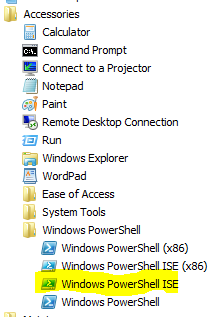
Right click on it and select "Run as an administrator". For some tasks it's not needed, but some just fail without trying to elevate permissions.
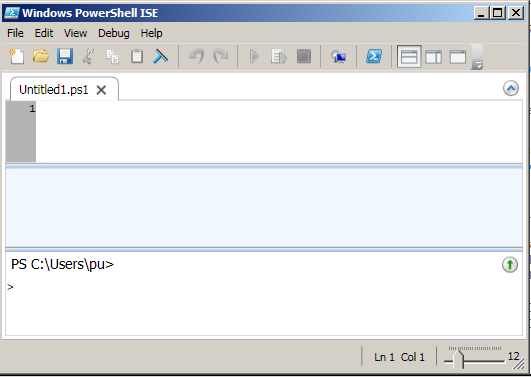
When you have ISE opened you'll see a windows separated to 3 areas.
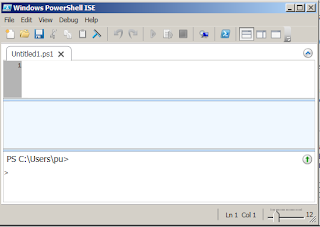
The top part (Script Pane) allows to edit a script and run it at once The middle (Output Pane) shows PowerShell output and the lower one (Command Pane) allows to enter commands interactively, one by one. To make the intro complete we'll run a Hello World like program to be sure that we have really started.
So, copy the following two lines to the Script Pane (top one)
name = Read-Host -Prompt "What is you name?" Write-Host Hello $name! Welcome to PowerShell world
and then press "Run"
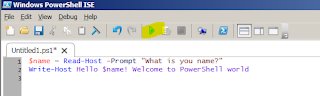
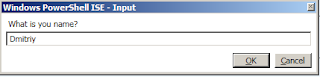
you'll see a prompt asking for a name. Enter your name and press ok
Then you'll see that a middle sections contains a prompt welcoming you to the world of PowerShell.

After running a script all variables are stored in the session and you could access them through the immediate window
So if you put
$name
into the Command Pane and press Enter
you'll see what name was entered previously
As any language, PowerShell has much more to learn, but it's a scripting language that worth investing your time if you work on Windows Platform